Dim i1 As Integer
Integer.TryParse("13", i1)
MessageBox.Show(i1.ToString())
Saturday, September 18, 2010
Cint Function in VB.NET / Convert String to Integer in VB.NET
Following snippet provides a hint for Converting an Integer to String
Abstract Classes in VB.NET
Abstract classes are base classes that has to be inherited. A class can be made as an abstract with MustInherit modifier
Abstract classes can contain abstract methods also. Abstract methods are the ones where only signature is available in the base class and their implementation is taken care in derived classes.
Following is an example of abstract class:
the class contains one Abstract method
The class can be inherited as shown below:
The class can be used as shown below:
the first call uses the method from the base class and the second one uses the Method we had overriden in the derived class
Abstract classes can contain abstract methods also. Abstract methods are the ones where only signature is available in the base class and their implementation is taken care in derived classes.
Following is an example of abstract class:
Public MustInherit Class ClassAbs
Public Sub ExampleMethod()
MessageBox.Show("This is sample")
End Sub
Public MustOverride Sub ExampleMethod_ShouldBeInherited()
Public Overridable Sub ExampleMethod_CanBeCalledFromBase()
MessageBox.Show("This is sample")
End Sub
End Class
the class contains one Abstract method
The class can be inherited as shown below:
Public Class ClassDerivedFromAbstract
Inherits ClassAbs
Public Sub ExampleAbstract()
MyBase.ExampleMethod_CanBeCalledFromBase()
End Sub
Public Overrides Sub ExampleMethod_ShouldBeInherited()
End Sub
Public Overrides Sub ExampleMethod_CanBeCalledFromBase()
MessageBox.Show("This is sample from Derived")
End Sub
End Class
The class can be used as shown below:
Dim CAb As New ClassDerivedFromAbstract
CAb.ExampleMethod_CanBeCalledFromBase()
CAb.ExampleMethod_ShouldBeInherited()
the first call uses the method from the base class and the second one uses the Method we had overriden in the derived class
Thursday, September 16, 2010
How to make Windows Form fit FullScreen using VB.NET
We have already seen How to Get Width and Height of Desktop Screen using C#/VB.NET in previous post. The following VB.NET snippet provides a method to make the Windows Form fir the Desktop screen
You can add this snippet in Form_Load sub
Dim iWidth As Integer = Screen.PrimaryScreen.Bounds.Width
Dim iHeight As Integer = Screen.PrimaryScreen.Bounds.Height
Me.Width = iWidth
Me.Height = iHeight
Me.Location = New System.Drawing.Point(0, 0)
You can add this snippet in Form_Load sub
Friday, August 27, 2010
Video Tutorial - Add a new button on Office backstage using C#
How to add a new button to Office (Excel) Backstage from Addin using VSTO (C#)
The following XML adds a new button on Backstage. The button will be added at the end as we didn't specify a location.
Thursday, August 26, 2010
What is a Backstage view and How to customize it?
Backstage view in Office 2010 - An Introduction
Backstage was introducted in Office 2010 to hold commands and menus which are do some work 'on the document', for example, Printing, Publishing to SharePoint etc.
Backstage view is part of Office Fluent UI and very much customizable. The following video shows the elements of Backstage view.
Office 2010 BackStage View - An Introduction to customizable elements
Tuesday, August 24, 2010
How to Get Width and Height of Desktop Screen using C#/VB.NET
How to resize Windows form to fit Windows screen using C#/VB.NET
The following code resizes the Form Window to fit the entire screen .
int iWindowWidth = Screen.PrimaryScreen.Bounds.Width;
int iWindowHeight = Screen.PrimaryScreen.Bounds.Height;
this.Size = new Size(iWindowWidth, iWindowHeight ) ;
Saturday, August 7, 2010
How to Enable a Disabled VSTO Addin
VSTO Addin is not getting Executed / VSTO Addin Stopped working
If your VSTO addin stopped working suddenly, it might because the Application would have taken precautionary measure by disabling your Addin.
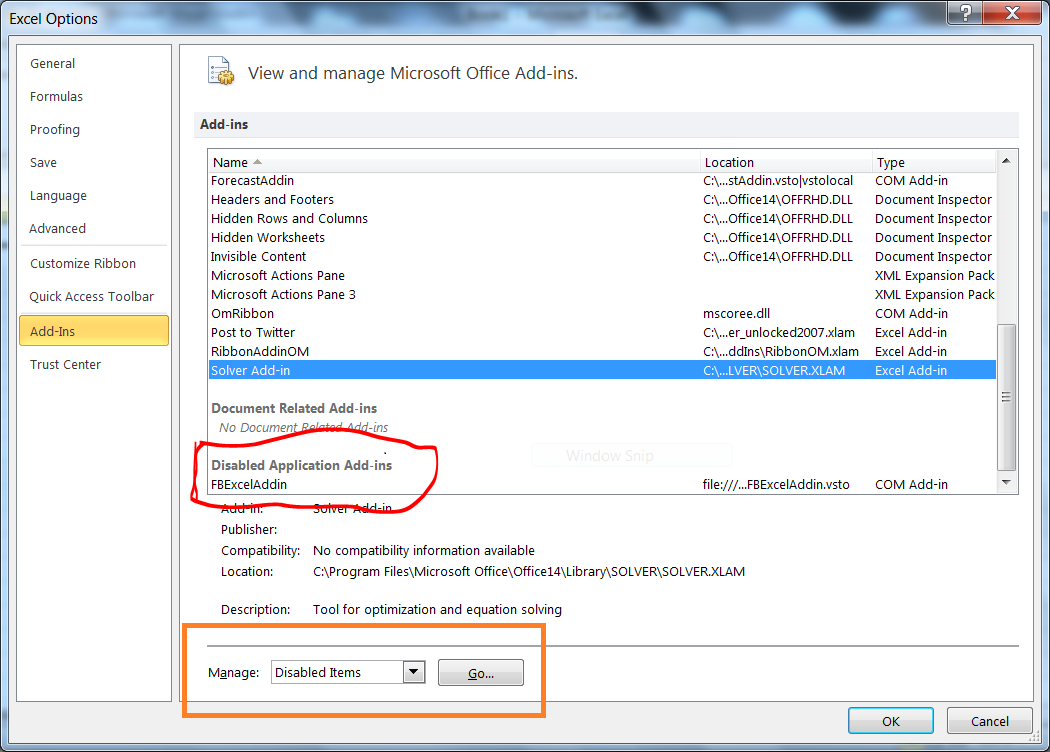
The disabled addins can be checked from Excel/Word options from Backstage View as shown below:
Select the Addin you want to enable and select Enable:
If your VSTO addin stopped working suddenly, it might because the Application would have taken precautionary measure by disabling your Addin.
The disabled addins can be checked from Excel/Word options from Backstage View as shown below:
Select the Addin you want to enable and select Enable:
Subscribe to:
Posts (Atom)