Windows Phone Developers

Sunday, April 27, 2008

Using Vb.Net Function in VBA


How to use a VB.Net DLL/TLB in Excel VBA


Here is an example for using the customized .NET Function in Excel VBA. Unfortunately EXcel VBA doesn't have a Array.Sort function. To overcome the shortcomings, we create our own function here in .Net and use the same in Excel VBA

Here are the steps:


  1. Create a class library project in Visual Studio
  2. Add a COM Class item (DND_SortArray in this example)
  3. In the assembly information edit the title, company and provide a meaningful description. This would be seen in the References dialog in Excel
  4. Add the code shown below:


_
  1. Public Class DotNetDud_SortArray

    #Region "COM GUIDs"

    ' These GUIDs provide the COM identity for this class

    ' and its COM interfaces. If you change them, existing

    ' clients will no longer be able to access the class.

    Public Const ClassId As String = "93534c94-9fc1-4a54-b022-338fa7d454c1"

    Public Const InterfaceId As String = "03787ed3-bc65-41a1-9053-d37f390ff94b"

    Public Const EventsId As String = "34d12c14-8afd-44b7-a987-fc2f909724b6"

    #End Region

    ' A creatable COM class must have a Public Sub New()

    ' with no parameters, otherwise, the class will not be

    ' registered in the COM registry and cannot be created

    ' via CreateObject.

    Public Sub New()

    MyBase.New()

    End Sub

    Public Sub SortArray(ByRef arTemp() As String)

    Array.Sort(arTemp)

    End Sub

    End Class

Compile the Project. You will get a DLL and a TLB.

Now open the Excel VBA Editor and add the TLB file to References.

The following code will now use the SortArray .NET Function created

Sub Use_DotNet_Sort()

Dim Cls1 As DotNetDud_SortArray.DotNetDud_SortArray

Set Cls1 = New DotNetDud_SortArray.DotNetDud_SortArray

Dim arTemp(0 To 2) As String

arTemp(0) = "Bottle"

arTemp(1) = "Apple"

arTemp(2) = "Aaron"

Cls1.SortArray arTemp

Set Cls1 = Nothing

End Sub


Digg Technorati Delicious StumbleUpon Reddit BlinkList Furl Mixx Facebook Google Bookmark Yahoo
ma.gnolia squidoo newsvine live netscape tailrank mister-wong blogmarks slashdot spurl StumbleUpon

Extract Interface from Custom Class (C#)

How to Extract Class Members to Interface in C#

You can extract one or more public members from a type into a new interface.

To extract members to a new interface

1. In Class Designer, right-click the type that contains the member or members you want to extract, point to Refactor, and click Extract Interface.

The Extract Interface dialog box displays default values for the name of the interface and the name of the code file in which it will be declared. Either accept the default values or change them.

2. In the Select public members to form interface pane, select or clear the check box next to the members you want to extract into the new interface, and click OK.

A new interface is created, and the file that houses it is added to the project.

Digg Technorati Delicious StumbleUpon Reddit BlinkList Furl Mixx Facebook Google Bookmark Yahoo
ma.gnolia squidoo newsvine live netscape tailrank mister-wong blogmarks slashdot spurl StumbleUpon

Thursday, April 17, 2008

Visual Studio Add-ins vs. Shared Add-ins

Types of Add-Ins in Visual Studio

There are two different Add-in project types: Visual Studio and Shared.

A Visual Studio add-in can be loaded into both Visual Studio and the Visual Studio Macros IDE. Conversely, a Shared add-in can be loaded only into Microsoft Office applications such as Microsoft Word, Microsoft Publisher, Microsoft Visio, and Microsoft Excel. Also, each type offers a different set of options.


For example, the Visual Studio Add-in Wizard allows you to:


• Create a command bar user interface (UI) for your add-in,
• Define when the add-in loads, and
• Insert information into the Visual Studio Help About box.


The Shared Add-in Wizard only allows you to:

• Specify whether the add-in loads when the host application (that is, the Office application) loads, and
• Specify whether the add-in is available to all users of the computer or only the person who installed it.


In short, create Shared add-ins for use in Office applications, and create Visual Studio add-ins for use in Visual Studio.
Digg Technorati Delicious StumbleUpon Reddit BlinkList Furl Mixx Facebook Google Bookmark Yahoo
ma.gnolia squidoo newsvine live netscape tailrank mister-wong blogmarks slashdot spurl StumbleUpon

Tuesday, January 22, 2008

VB.Net Control Events Life Cycle

Control Focus Events Cycle

When you change the focus by using the keyboard (TAB, SHIFT+TAB, and so on), by calling the Select or SelectNextControl methods, or by setting the ContainerControl.ActiveControl property to the current form, focus events occur in the following order:

1. Enter

2. GotFocus

3. Leave

4. Validating

5. Validated

6. LostFocus

Private Sub DataGridView1_Leave(ByVal sender As Object, ByVal e As System.EventArgs) Handles DataGridView1.Leave

MsgBox("leave")

End Sub

Private Sub DataGridView1_LostFocus(ByVal sender As Object, ByVal e As System.EventArgs) Handles DataGridView1.LostFocus

MessageBox.Show("LostFocus")

End Sub

When you change the focus by using the mouse or by calling the Focus method, focus events occur in the following order:

1. Enter

2. GotFocus

3. LostFocus

4. Leave

5. Validating

6. Validated

If the CausesValidation property is set to false, the Validating and Validated events are suppressed.

NoteNote

The Enter and Leave events are suppressed by the Form class. The equivalent events in the Form class are the Activated and Deactivate events. The Enter and Leave events are hierarchical and will cascade up and down the parent chain until the appropriate control is reached. For example, assume you have a Form with two GroupBox controls, and each GroupBox control has one TextBox control. When the caret is moved from one TextBox to the other, the Leave event is raised for the TextBox and GroupBox, and the Enter event is raised for the other GroupBox and TextBox.

Digg Technorati Delicious StumbleUpon Reddit BlinkList Furl Mixx Facebook Google Bookmark Yahoo
ma.gnolia squidoo newsvine live netscape tailrank mister-wong blogmarks slashdot spurl StumbleUpon

Manage Local Data Files in Projects


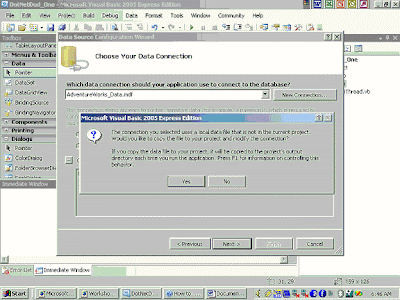
A local database file can be included as a file in a project. The first time you connect your application to a local database file, you can choose between creating a copy of the database in your project or connecting to the existing database file in its current location. For more information, see Local Data Overview.


If you choose to connect to the existing file, then a connection is created just as if you were connecting to any remote database, and the database file is left in its original location.

If you choose to copy the database into your project, Visual Studio creates a copy of the database file, adds it to your project, and modifies the connection so that it now points to the database in your project.


Note

Existing data connections in Server Explorer are modified to point to the database file in the project as well (the database file in the project's root folder).

By default, when you build a project, the database file is copied from the root project folder into the output (bin) folder (select Show All Files in Solution Explorer to view the bin folder). This behavior is due to the Copy to Output Directory property of the file. The default setting of the Copy to Output Directory property is Copy always. This means that the database in the bin folder will be copied every time you build, debug, or run your application (that is, copied from the root project folder to the output directory).

NoteNote

The behavior of the Copy to Output Directory property does not apply to web or C++ projects.

The database file in your root project folder is only changed when you edit the database schema or data using Server Explorer/Database Explorer or other Visual Database Tools.

The relationship between the two versions of your database file is dependent on the setting of the Copy to Output Directory property, which is described in the table below.

During application development, any changes made to the data (during run time within your application) are being made to the database in the bin folder. For example, when you press F5 to debug your application, you are connected to the database in the bin folder.

Copy to Output Directory setting

Behavior

Copy if newer

This option is not recommended. The database file is copied from the project directory to the bin directory the first time the project is built. Every subsequent time you build the project, the Date Modified property of the files is compared. If the file in the project folder is newer, it is copied to the bin folder, replacing the file currently there. If the file in the bin folder is newer, then no files are copied. This setting persists any changes made to the data during run time, meaning every time you run your application and save changes to the data, those changes are visible the next time you run your application.

Caution noteCaution

The database file can change even when no changes are made to the data. Simply opening a connection (for example, expanding the Tables node in Server Explorer) on a data file can mark it as newer. Because of this unpredictable behavior, we recommended that you do not use this option.

Copy always (default)

The database file is copied from the project directory to the bin directory every time you build your application. Every time you build your application and save changes to the data, those changes are overwritten when the original file is copied to the bin directory, replacing the copy that you just changed. You do not see the updated data the next time you run your application. Any changes made to the data file in the output folder will be overwritten the next time you run the application.

Do not copy

The file is never copied or overwritten by the project system. Because your application creates a dynamic connection string that points to the database file in the output directory, this setting only works for local database files when you manually copy the file yourself. You must manually copy the file to the output directory after setting to Do not copy.

Procedure

To respond to the Local database file dialog box

· Click Yes if you want Visual Studio to copy the database file into your project and modify the connection to point to the copy in your project. For more information on working with database files in your project, see Local Data Overview.

· Click No if you do not want Visual Studio to copy the database file into your project. Instead, the connection points to the file in the original location.


Digg Technorati Delicious StumbleUpon Reddit BlinkList Furl Mixx Facebook Google Bookmark Yahoo
ma.gnolia squidoo newsvine live netscape tailrank mister-wong blogmarks slashdot spurl StumbleUpon

What is a static class?

What is a static class?

Static classes are classes that do not contain instance members other than those inherited from Object, and do not have a callable constructor.

 
The members of a static class are accessed directly without an instance of the class.

Example

Console.WriteLine ("I Do not need any instances")

Environment.CommandLine

Digg Technorati Delicious StumbleUpon Reddit BlinkList Furl Mixx Facebook Google Bookmark Yahoo
ma.gnolia squidoo newsvine live netscape tailrank mister-wong blogmarks slashdot spurl StumbleUpon

Thursday, December 27, 2007

Download Visual Studio 2008 and the .NET Framework 3.5

Microsoft announced that Visual Studio 2008 and the .NET Framework 3.5 were released to manufacturing (RTM). With more than 250 new features,Visual Studio 2008 includes significant enhancements in every edition, including Visual Studio Express and Visual Studio Team System. Developers of all levels – from hobbyists to enterprise development teams – now have a consistent, secure and reliable solution for developing applications for the latest platforms: the Web, Windows Vista, Windows Server 2008, the 2007 Office system, and beyond. Learn more about Visual Studio 2008.All of the above happening @ http://msdn2.microsoft.com/en-us/vstudio/default.aspx Digg Technorati Delicious StumbleUpon Reddit BlinkList Furl Mixx Facebook Google Bookmark Yahoo
ma.gnolia squidoo newsvine live netscape tailrank mister-wong blogmarks slashdot spurl StumbleUpon